
The WPCasa Energy Efficiency add-on is required if you want to display energy efficiency values of your property on your listing page. This information is needed especially in some European countries.
This add-on gives you the ability to present the energy values visually on a color scale. You can display these both vertically in a sidebar and horizontally in the content area.
Add-On Settings
After activating the plugin you can head over to the add-on settings on WP-Admin > WPCasa > Settings and you will find the new Energy Efficiency tab.
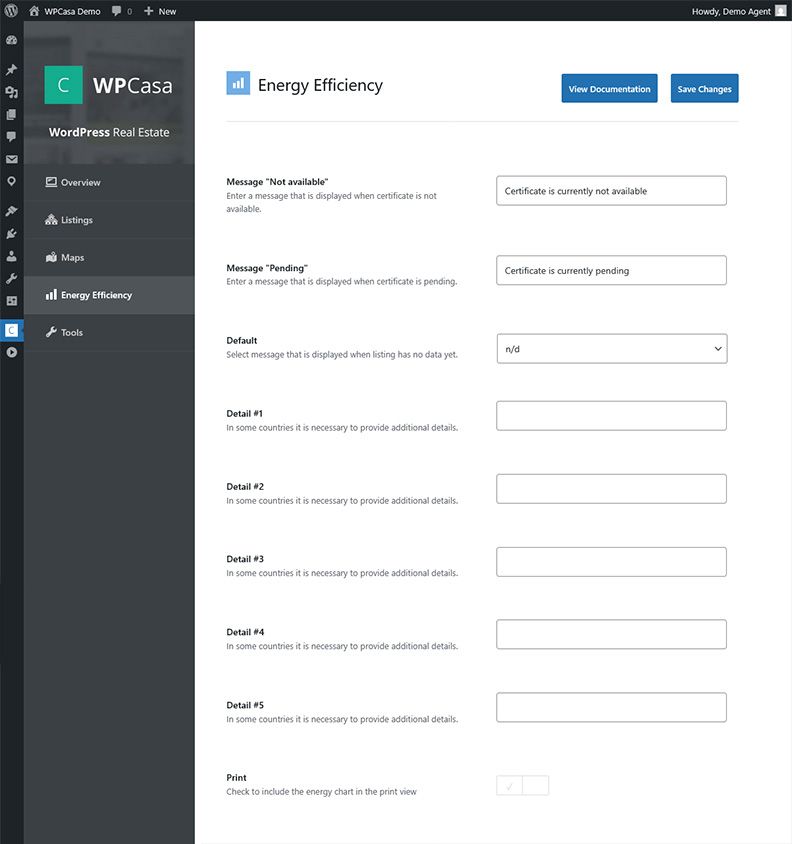
Here you can set the text of the messages and optionally add additional details that are required in your country or that you would like to show to your customers.
Message “Not available”
This message is displayed when the certificate is not available.
Message “Pending”
This message is displayed when the certificate is pending.
Default
Select the message that is displayed when a listing has no data yet.
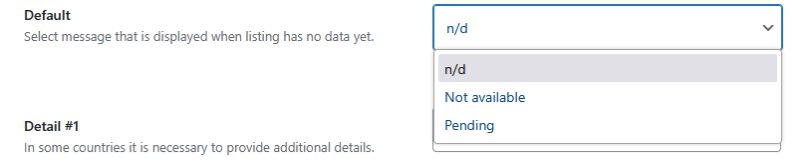
Additional Details
Here you can add up to five additional details. For example, in some countries, additional information on real estate may need to be provided to comply with local laws. Or you may want to inform your customers about a specific value independently. If a detail has no value, it will not be displayed on the listing page.
Select whether you also want the Energy Chart to be printed when you print the listing.
Add the Details to the Listing Page Template
You can add the Energy Efficiency details to your listing page with the shortcode [wpsight_listing_energy_efficiency] or with the widget › WPCasa Energy Efficiency.
Using the Shortcode
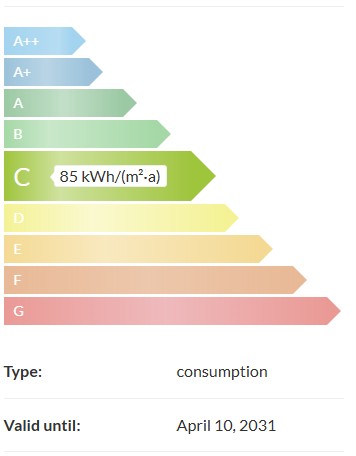
Add the shortcode [wpsight_listing_energy_efficiency] in your single listing page template. The shortcode supports the attribute orientation with the values vertical and horizontal. Vertical is the default value if no attribute is given, which means the additional information is below the chart.
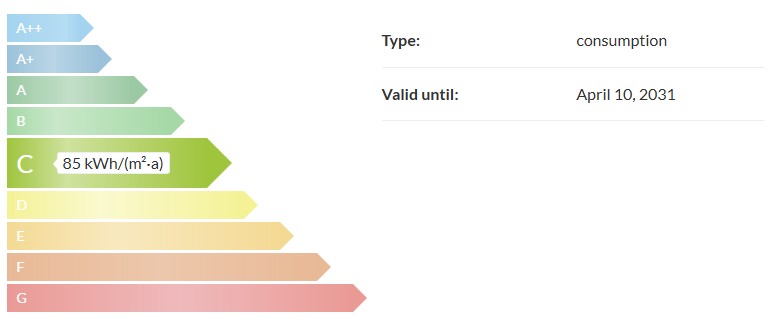
For example you can add [wpsight_listing_energy_efficiency orientation="horizontal"] to show the additional information next to the energy chart.
Setting up the Widget
If your theme supports widgets, you can easily add the energy efficiency widget by dragging and dropping the widget into the corresponding sidebar.
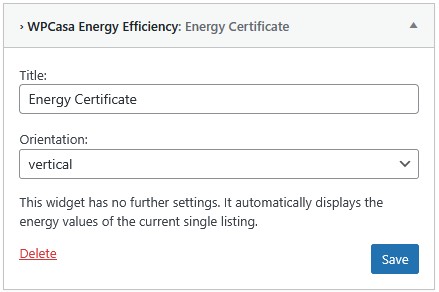
The settings are self-explanatory. In addition to the title, you determine whether the graphic is displayed horizontally or vertically.
Adding Values to the Listing
Finally, you need to add the energy values to the listing. Open the listing in the backend and you will find a new box with the title Listing Energy Values.

The box shows you all the settings you can add for the info graphic.
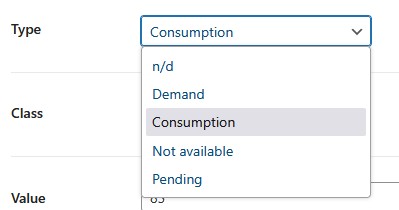
Type
You will see a drop-down list for the type of your energy chart. You can choose between n/d, Demand, Consumption, Not available and Pending
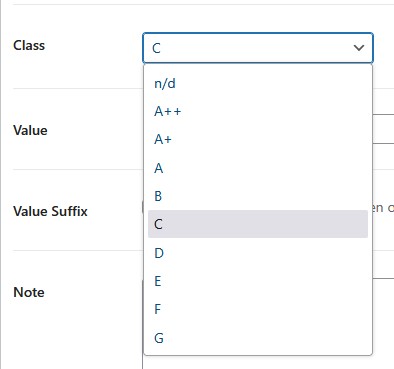
Class
You will also see a drop-down list for the class of your energy certificate. You can choose between the values from A++ up to G.
Value
Enter the annual consumption.
Value Suffix
Select whether you want to have kWh/(m²-a) automatically displayed after the value. This is the default value. You can change the value by using the WordPress filter wpsight_shortcode_listing_value_suffix.
Note
Enter a note here that will be displayed below the chart.
Valid until
Indicate whether and until when the certificate is valid.
Certificate
You can upload the certificate here. Interested parties can download it below the chart.
Additional Details
If you have added additional details, the input fields will also appear so that you can enter the relevant values. However, this depends on your individual settings.
Certificate Not Showing?
If the energy chart or certificate download is missing from your listing page, please check the following possible causes:
- Required plugins are not active
- Shortcode or widget is missing
- Type or Class is not set
- Type is set to Pending or Not available
- Default message is disabled or empty
- Certificate file is missing or inaccessible
- Shortcode is loading the wrong listing
- Imported or translated listing data is missing or incorrect
- Theme templates or custom code change the output
- Styling, caching or technical errors affect the output
- Print output is disabled or missing from the template
Required Plugins Are Not Active
WPCasa Energy Efficiency is an add-on and requires the WPCasa core plugin. Go to WP-Admin > Plugins and make sure both plugins are installed and active.
Shortcode or Widget Is Missing
Activating the add-on does not automatically add the energy chart to your listing page.
Add [wpsight_listing_energy_efficiency] to your single listing page template, or place the › WPCasa Energy Efficiency widget in a sidebar that is displayed on your listing pages.
If you are using a page builder, make sure you use an element that processes WordPress shortcodes. If the shortcode appears as plain text, it is not being processed.
Type or Class Is Not Set
Open the listing in the backend and find the Listing Energy Values box. To display the energy chart and certificate download, select:
- Type: Demand or Consumption.
- Class: The energy class shown on your certificate.
Save or update the listing after making your changes.
If either field is left at n/d, the chart and download link will not be displayed. Entering an annual consumption value or uploading a certificate does not replace these two settings.
The plugin does not calculate the energy class from the consumption value or read it from the uploaded PDF.
Type Is Set to Pending or Not Available
If Type is set to Pending or Not available, the plugin displays the corresponding message instead of the chart and its details.
This also hides the certificate download, even if you have already uploaded a file and selected an energy class.
Once the certificate is available, change Type to Demand or Consumption, select the correct Class and update the listing.
Default Message Is Disabled or Empty
When Type or Class is missing, the Default setting under WP-Admin > WPCasa > Settings > Energy Efficiency determines which fallback message is displayed.
If Default is set to n/d, no fallback message is shown. This can leave the energy efficiency section empty.
Also check Message “Not available” and Message “Pending”. If the selected message has been saved without any text, visitors will not see an explanation.
The Default setting only controls the fallback message. It does not supply missing energy values or enable the chart.
Certificate File Is Missing or Inaccessible
If the chart is visible but the Download link is missing, open the listing and check the Certificate field in the Listing Energy Values box.
Upload or select the certificate there and update the listing. Uploading a PDF to the Media Library or attaching it elsewhere does not automatically connect it to this field.
The certificate is displayed as a Download link below the chart. The add-on does not embed a PDF preview on the listing page.
If the link is visible but the document cannot be opened, check that the file still exists and that its URL is accessible to visitors. A deleted file, an outdated URL after a migration or restricted file access can prevent the download from working.
Shortcode Is Loading the Wrong Listing
By default, the shortcode uses the current post ID. The widget also uses this shortcode to retrieve the current listing’s energy values.
On a regular page, in a custom loop or in some page builder templates, the current post may be different from the listing you want to display.
You can explicitly select a listing with the post_id attribute:
[wpsight_listing_energy_efficiency post_id="123"]Replace 123 with the correct listing ID. Also check any existing post_id attribute, as an incorrect ID will load another post’s values.
Imported or Translated Listing Data Is Missing or Incorrect
If the listing was imported, migrated or translated, open that exact listing in the backend and check its saved energy values.
Imports must populate the fields used by this add-on. For example:
_energy_efficiency_typestoresdemand,consumption,pendingornot-available._energy_efficiency_classstores keys such asa-plus-plus,a-plus,aorb._energy_efficiency_certificate_documentstores the certificate URL.
Display labels such as “Demand” or “A+” are not the corresponding internal values. An incorrect class value can leave the chart without a highlighted class and consumption value.
For translated listings with separate post IDs, make sure the energy values and certificate URL have been copied or entered for the translated listing as well.
Theme Templates or Custom Code Change the Output
A theme or child theme can override listing-energy-efficiency.php. An outdated or modified override may omit the chart or certificate link.
Custom plugins and snippets can also change the energy data, available classes, messages or shortcode output through filters.
If your settings are correct but the output is still missing, have your developer check template overrides and customizations. Custom PHP integrations must pass the listing ID when calling wpsight_listing_energy_efficiency().
Styling, Caching or Technical Errors Affect the Output
If the chart is present in the page source but is invisible or displayed incorrectly, check whether theme styles or custom CSS are hiding it and whether the add-on’s stylesheet loads successfully.
For developers: in version 1.0.1, enabling SCRIPT_DEBUG makes the add-on request unminified CSS files that are missing from the inspected plugin package. This can leave the chart without its intended styling.
After changing listing values, templates or styles, clear any page, server, CDN and browser caches that are in use.
If the page stops loading or displays a critical error, check the PHP error log for a plugin, theme or customization error.
Print Output Is Disabled or Missing from the Template
If the chart appears on the listing page but is missing from the WPCasa print view, go to WP-Admin > WPCasa > Settings > Energy Efficiency and enable Print.
The print template must also include the energy efficiency output. A custom print template or separate PDF integration may require its own setup.
Please Notice!
Other articles in Add-Ons
- Activate License Keys
- WPCasa Admin Map UI
- WPCasa Advanced Search
- WPCasa All Import
- WPCasa Contact Form 7
- WPCasa Currency Converter
- WPCasa Dashboard
- WPCasa Dashboard v1.0 (deprecated)
- WPCasa Energy Efficiency
- WPCasa Expire Listings
- WPCasa Favorites
- WPCasa Featured Listings
- WPCasa Gravity Forms
- WPCasa Legacy
- WPCasa List Agents
- WPCasa Listing Labels
- WPCasa Listing PDF
- WPCasa Listings Map
- WPCasa Mortgage Calculator
- WPCasa Ninja Forms
- WPCasa Polylang
- WPCasa Pricing Tables